Twelve steps to close SAP Business One books accurately and on time — a week-by-week plan for a 31 March year-end.
Most Indian SMEs treat year-end closing as a March problem. By then it is too late. Open invoices pile up, stock counts drift, and the auditor’s questions arrive before your reconciliations are ready.
The fix is a plan that starts in January. Below is a 12-step checklist for SAP Business One users, a week-by-week schedule, and a look at when the workload peaks so you can staff for it.
Your closing plan, week by week
Suggested schedule for a 31 March year-end. Each bar shows when a step is active.
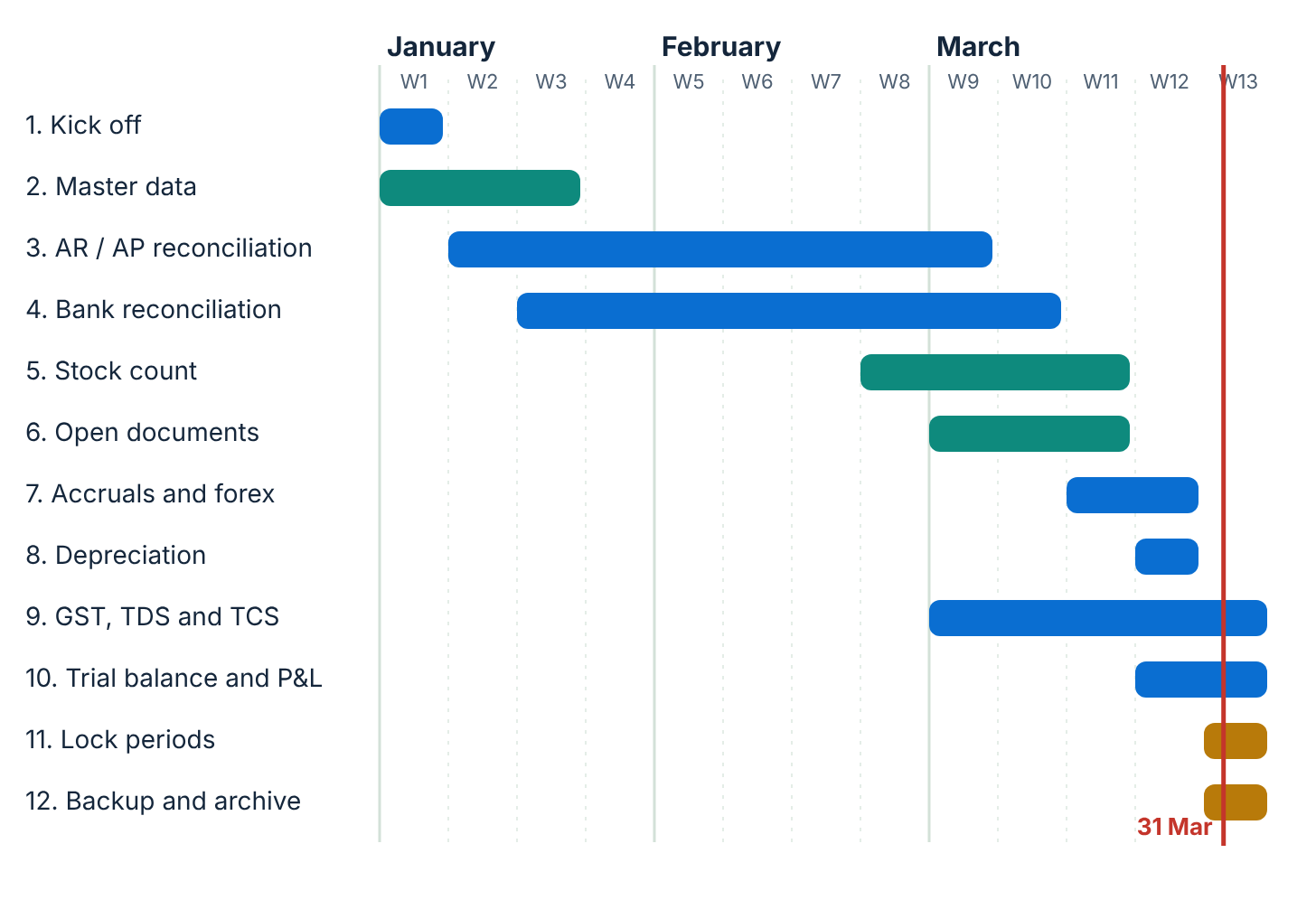
Finance team Operations: sales, purchase, stores IT 31 March deadline
When the pressure lands
The workload peaks in March
Steps running at the same time, by week.
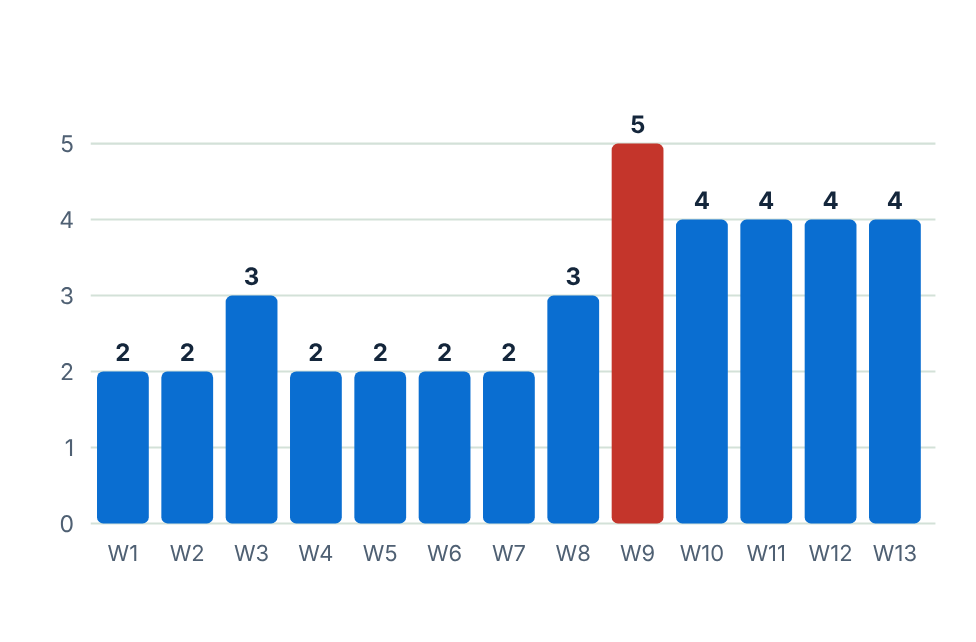
Peak load is five steps at once in week 9, starting 1 March. Earlier weeks carry only two or three.
Closing is not only a finance job
Steps by owning team in this checklist.
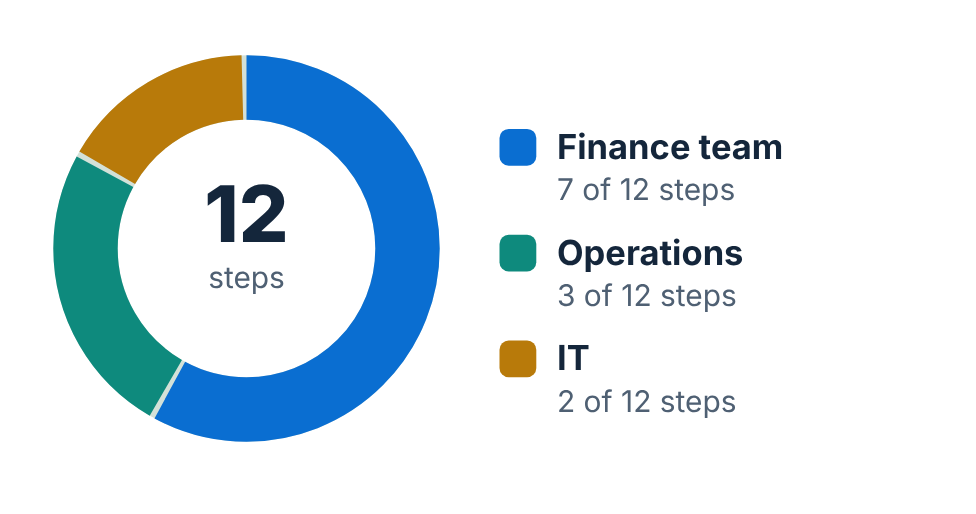
Five of the twelve steps depend on stores, sales, purchase or IT. Bring them in early.
The 12-step checklist
Work through these in order. Menu paths follow SAP Business One 10.0 naming and can differ slightly by version and localization.
1
Kick off and name an owner for each step
Finance teamWeek 1, from 4 Jan
Agree a closing calendar with your chartered accountant and auditor. Put one name against every step below.
In SAP Business One: Administration > System Initialization > Authorizations: review who can post in the open period.
2
Clean up master data
OperationsWeek 1 to 3, from 4 Jan
Block inactive customers, vendors and items. Fix missing GSTINs and duplicate accounts before they distort reports.
In SAP Business One: Business Partner Master Data, Item Master Data and Chart of Accounts.
3
Reconcile receivables and payables to the ledger
Finance teamWeek 2 to 9, from 11 Jan
Match open invoices, credit memos and payments. Clear unallocated receipts and old debit balances each month, not once a year.
In SAP Business One: Financials > Internal Reconciliations > Reconciliation.
4
Reconcile every bank account
Finance teamWeek 3 to 10, from 18 Jan
Tie each account to the statement and clear old unmatched entries. Cheques in transit should have a date and a reason.
In SAP Business One: Banking > Bank Statements and External Reconciliations.
5
Count stock and check valuation
OperationsWeek 8 to 11, from 22 Feb
Run a physical count, post the differences, and review negative stock, batch and serial balances before valuation is final.
In SAP Business One: Inventory > Inventory Transactions > Inventory Counting and Inventory Posting.
6
Close or cancel open documents
OperationsWeek 9 to 11, from 1 Mar
Stale sales orders, purchase orders and unmatched goods receipts hide your true commitments. Close what is dead.
In SAP Business One: Open Items List reports under Sales – A/R and Purchasing – A/P.
7
Post accruals, provisions and forex revaluation
Finance teamWeek 11 to 12, from 15 Mar
Record expenses incurred but not billed, prepaid items and provisions. Revalue foreign currency balances at the year-end rate.
In SAP Business One: Financials > Journal Entry and Financials > Exchange Rate Differences.
8
Run depreciation
Finance teamWeek 12, from 22 Mar
Post the year’s depreciation and check the fixed asset register for assets sold or scrapped during the year.
In SAP Business One: Financials > Fixed Assets > Depreciation Run.
9
Reconcile GST, TDS and TCS
Finance teamWeek 9 to 13, from 1 Mar
Match your sales and purchase books with filed GST returns and input tax credit. Tie TDS and TCS ledgers to the returns filed.
In SAP Business One: Depends on your GST localization or add-on. Run the tax reports from there.
10
Review the trial balance, P&L and balance sheet
Finance teamWeek 12 to 13, from 22 Mar
Look for unusual swings, odd balances and accounts with no movement. Ask why before the auditor does.
In SAP Business One: Financials > Financial Reports > Accounting: Trial Balance, Balance Sheet, Profit and Loss Statement.
11
Lock closed periods and set up next year’s periods
ITWeek 13, from 29 Mar
Lock finished months so nobody posts back-dated entries. Create the new year’s posting periods so April starts cleanly.
In SAP Business One: Administration > System Initialization > Posting Periods.
12
Back up and archive the audit pack
ITWeek 13, from 29 Mar
Take a full company database backup. Export the reports your auditor will ask for and store them in one folder.
In SAP Business One: Your database backup process, plus report exports from the Financials menu.
What comes after step 12? Once your auditor signs off, run Financials > Period-End Closing to carry balances into the new year. Do this only after the audit is final, and only after a full database backup.
A note on accuracy. This is a general checklist, not accounting or tax advice. The schedule above is a suggested plan, not survey data. Confirm GST, TDS and statutory steps with your chartered accountant, and test any year-end run in a copy of your company database first.
Want a closing plan built around your company?
Our SAP consultants will review your setup and help you close the year without last-minute surprises.
Talk to an SAP expert